


Refactor high-complexity React components in Dify frontend. Use when `pnpm analyze-component...

npx skills add komal-SkyNET/claude-skill-homeassistant
Or install specific skill: npx add-skill https://github.com/komal-SkyNET/claude-skill-homeassistant
Expert-level Home Assistant configuration management with efficient deployment workflows (git and rapid scp iteration), remote CLI access via SSH and hass-cli, automation verification protocols, log analysis, reload vs restart optimization, and comprehensive Lovelace dashboard management for tablet-optimized UIs. Includes template patterns, card types, debugging strategies, and real-world examples.
name: home-assistant-manager
description: Expert-level Home Assistant configuration management with efficient deployment workflows (git and rapid scp iteration), remote CLI access via SSH and hass-cli, automation verification protocols, log analysis, reload vs restart optimization, and comprehensive Lovelace dashboard management for tablet-optimized UIs. Includes template patterns, card types, debugging strategies, and real-world examples.
Expert-level Home Assistant configuration management with efficient workflows, remote CLI access, and verification protocols.
Before starting, verify the environment has:
1. SSH access to Home Assistant instance ([email protected])
2. hass-cli installed locally
3. Environment variables loaded (HASS_SERVER, HASS_TOKEN)
4. Git repository connected to HA /config directory
5. Context7 MCP server with Home Assistant docs (recommended)
All hass-cli commands use environment variables automatically:
# List entities
hass-cli state list

# Get specific state
hass-cli state get sensor.entity_name

# Call services
hass-cli service call automation.reload
hass-cli service call automation.trigger --arguments entity_id=automation.name
# Check configuration validity
ssh [email protected] "ha core check"

# Restart Home Assistant
ssh [email protected] "ha core restart"

# View logs
ssh [email protected] "ha core logs"

# Tail logs with grep
ssh [email protected] "ha core logs | grep -i error | tail -20"
Use for changes you want in version control:
# 1. Make changes locally
# 2. Check validity
ssh [email protected] "ha core check"

# 3. Commit and push
git add file.yaml
git commit -m "Description"
git push

# 4. CRITICAL: Pull to HA instance
ssh [email protected] "cd /config && git pull"

# 5. Reload or restart
hass-cli service call automation.reload  # if reload sufficient
# OR
ssh [email protected] "ha core restart"  # if restart needed

# 6. Verify
hass-cli state get sensor.new_entity
ssh [email protected] "ha core logs | grep -i error | tail -20"
Use scp for quick testing before committing:
# 1. Make changes locally
# 2. Quick deploy
scp automations.yaml [email protected]:/config/

# 3. Reload/restart
hass-cli service call automation.reload

# 4. Test and iterate (repeat 1-3 as needed)

# 5. Once finalized, commit to git
git add automations.yaml
git commit -m "Final tested changes"
git push
When to use scp:
- 🚀 Rapid iteration and testing
- 🔄 Frequent small adjustments
- 🧪 Experimental changes
- 🎨 UI/Dashboard work
When to use git:
- ✅ Final tested changes
- 📦 Version control tracking
- 🔒 Important configs
- 👥 Changes to document
ALWAYS assess if reload is sufficient before requiring a full restart.
hass-cli service call automation.reloadhass-cli service call script.reloadhass-cli service call scene.reloadhass-cli service call template.reloadhass-cli service call group.reloadhass-cli service call frontend.reload_themesALWAYS verify automations after deployment:
git add automations.yaml && git commit -m "..." && git push
ssh [email protected] "cd /config && git pull"
ssh [email protected] "ha core check"
hass-cli service call automation.reload
hass-cli service call automation.trigger --arguments entity_id=automation.name
Why trigger manually?
- Instant feedback (don't wait for scheduled triggers)
- Verify logic before production
- Catch errors immediately
sleep 3
ssh [email protected] "ha core logs | grep -i 'automation_name' | tail -20"
Success indicators:
- Initialized trigger AutomationName
- Running automation actions
- Executing step ...
- No ERROR or WARNING messages
Error indicators:
- Error executing script
- Invalid data for call_service
- TypeError, Template variable warning
For notifications:
- Ask user if they received it
- Check logs for mobile_app messages
For device control:
hass-cli state get switch.device_name
For sensors:
hass-cli state get sensor.new_sensor
If errors found:
1. Identify root cause from error messages
2. Fix the issue
3. Re-deploy (steps 1-2)
4. Re-verify (steps 3-6)
What are Lovelace Dashboards?
- JSON files in .storage/ directory (e.g., .storage/lovelace.control_center)
- UI configuration for Home Assistant frontend
- Optimizable for different devices (mobile, tablet, wall panels)
Critical Understanding:
- Creating dashboard file is NOT enough - must register in .storage/lovelace_dashboards
- Dashboard changes don't require HA restart (just browser refresh)
- Use panel view for full-screen content (maps, cameras)
- Use sections view for organized multi-card layouts
Rapid Iteration with scp (Recommended for dashboards):
# 1. Make changes locally
vim .storage/lovelace.control_center

# 2. Deploy immediately (no git commit yet)
scp .storage/lovelace.control_center [email protected]:/config/.storage/

# 3. Refresh browser (Ctrl+F5 or Cmd+Shift+R)
# No HA restart needed!

# 4. Iterate: Repeat 1-3 until perfect

# 5. Commit when stable
git add .storage/lovelace.control_center
git commit -m "Update dashboard layout"
git push
ssh [email protected] "cd /config && git pull"
Why scp for dashboards:
- Instant feedback (no HA restart)
- Iterate quickly on visual changes
- Commit only stable versions
Complete workflow:
# Step 1: Create dashboard file
cp .storage/lovelace.my_home .storage/lovelace.new_dashboard

# Step 2: Register in lovelace_dashboards
# Edit .storage/lovelace_dashboards to add:
{
  "id": "new_dashboard",
  "show_in_sidebar": true,
  "icon": "mdi:tablet-dashboard",
  "title": "New Dashboard",
  "require_admin": false,
  "mode": "storage",
  "url_path": "new-dashboard"
}

# Step 3: Deploy both files
scp .storage/lovelace.new_dashboard [email protected]:/config/.storage/
scp .storage/lovelace_dashboards [email protected]:/config/.storage/

# Step 4: Restart HA (required for registry changes)
ssh [email protected] "ha core restart"
sleep 30

# Step 5: Verify appears in sidebar
Update .gitignore to track:
# Exclude .storage/ by default
.storage/

# Include dashboard files
!.storage/lovelace.new_dashboard
!.storage/lovelace_dashboards
Use Panel View when:
- Displaying full-screen map (vacuum, cameras)
- Single large card needs full width
- Want zero margins/padding
- Minimize scrolling
Use Sections View when:
- Organizing multiple cards
- Need responsive grid layout
- Building multi-section dashboards
Layout Example:
// Panel view - full width, no margins
{
  "type": "panel",
  "title": "Vacuum Map",
  "path": "map",
  "cards": [
    {
      "type": "custom:xiaomi-vacuum-map-card",
      "entity": "vacuum.dusty"
    }
  ]
}

// Sections view - organized, has ~10% margins
{
  "type": "sections",
  "title": "Home",
  "sections": [
    {
      "type": "grid",
      "cards": [...]
    }
  ]
}
Mushroom Cards (Modern, Touch-Optimized):
{
  "type": "custom:mushroom-light-card",
  "entity": "light.living_room",
  "use_light_color": true,
  "show_brightness_control": true,
  "collapsible_controls": true,
  "fill_container": true
}
Mushroom Template Card (Dynamic Content):
{
  "type": "custom:mushroom-template-card",
  "primary": "All Doors",
  "secondary": "{% set sensors = ['binary_sensor.front_door'] %}\n{% set open = sensors | select('is_state', 'on') | list | length %}\n{{ open }} / {{ sensors | length }} open",
  "icon": "mdi:door",
  "icon_color": "{% if open > 0 %}red{% else %}green{% endif %}"
}
\n in JSONTile Card (Built-in, Modern):
{
  "type": "tile",
  "entity": "climate.thermostat",
  "features": [
    {"type": "climate-hvac-modes", "hvac_modes": ["heat", "cool", "fan_only", "off"]},
    {"type": "target-temperature"}
  ]
}
Counting Open Doors:
{% set door_sensors = [
  'binary_sensor.front_door',
  'binary_sensor.back_door'
] %}
{% set open = door_sensors | select('is_state', 'on') | list | length %}
{{ open }} / {{ door_sensors | length }} open
Color-Coded Days Until:
{% set days = state_attr('sensor.bin_collection', 'daysTo') | int %}
{% if days <= 1 %}red
{% elif days <= 3 %}amber
{% elif days <= 7 %}yellow
{% else %}grey
{% endif %}
Conditional Display:
{% set bins = [] %}
{% if days and days | int <= 7 %}
  {% set bins = bins + ['Recycling'] %}
{% endif %}
{% if bins %}This week: {{ bins | join(', ') }}{% else %}None this week{% endif %}
IMPORTANT: Always use | int or | float to avoid type errors when comparing
Screen-specific layouts:
- 11-inch tablets: 3-4 columns
- Touch targets: minimum 44x44px
- Minimize scrolling: Use panel view for full-screen
- Visual feedback: Color-coded status (red/green/amber)
Grid Layout for Tablets:
{
  "type": "grid",
  "columns": 3,
  "square": false,
  "cards": [
    {"type": "custom:mushroom-light-card", "entity": "light.living_room"},
    {"type": "custom:mushroom-light-card", "entity": "light.bedroom"}
  ]
}
Problem 1: Dashboard Not in Sidebar
- Cause: File created but not registered
- Fix: Add to .storage/lovelace_dashboards and restart HA
Problem 2: "Configuration Error" in Card
- Cause: Custom card not installed, wrong syntax, template error
- Fix:
- Check HACS for card installation
- Check browser console (F12) for details
- Test templates in Developer Tools → Template
Problem 3: Auto-Entities Fails
- Cause: card_param not supported by card type
- Fix: Use cards that accept entities parameter:
- ✅ Works: entities, vertical-stack, horizontal-stack
- ❌ Doesn't work: grid, glance (without specific syntax)
Problem 4: Vacuum Map Has Margins/Scrolling
- Cause: Using sections view (has margins)
- Fix: Use panel view for full-width, no scrolling
Problem 5: Template Type Errors
- Error: TypeError: '<' not supported between instances of 'str' and 'int'
- Fix: Use type filters: states('sensor.days') | int < 7
1. Browser Console (F12):
- Check for red errors when loading dashboard
- Common: "Custom element doesn't exist" → Card not installed
2. Validate JSON Syntax:
python3 -m json.tool .storage/lovelace.control_center > /dev/null
3. Test Templates:
Home Assistant → Developer Tools → Template
Paste template to test before adding to dashboard
4. Verify Entities:
hass-cli state get binary_sensor.front_door
5. Clear Browser Cache:
- Hard refresh: Ctrl+F5 or Cmd+Shift+R
- Try incognito window
{
  "type": "grid",
  "title": "Quick Controls",
  "cards": [
    {
      "type": "custom:mushroom-template-card",
      "primary": "All Doors",
      "secondary": "{% set doors = ['binary_sensor.front_door', 'binary_sensor.back_door'] %}\n{% set open = doors | select('is_state', 'on') | list | length %}\n{{ open }} / {{ doors | length }} open",
      "icon": "mdi:door",
      "icon_color": "{% if open > 0 %}red{% else %}green{% endif %}"
    },
    {
      "type": "tile",
      "entity": "climate.thermostat",
      "features": [
        {"type": "climate-hvac-modes", "hvac_modes": ["heat", "cool", "fan_only", "off"]},
        {"type": "target-temperature"}
      ]
    }
  ]
}
{
  "type": "grid",
  "title": "Lights",
  "columns": 3,
  "cards": [
    {
      "type": "custom:mushroom-light-card",
      "entity": "light.office_studio",
      "name": "Office",
      "use_light_color": true,
      "show_brightness_control": true,
      "collapsible_controls": true
    }
  ]
}
{
  "type": "panel",
  "title": "Vacuum",
  "path": "vacuum-map",
  "cards": [
    {
      "type": "custom:xiaomi-vacuum-map-card",
      "vacuum_platform": "Tasshack/dreame-vacuum",
      "entity": "vacuum.dusty"
    }
  ]
}
# Configuration
ssh [email protected] "ha core check"
ssh [email protected] "ha core restart"

# Logs
ssh [email protected] "ha core logs | tail -50"
ssh [email protected] "ha core logs | grep -i error | tail -20"

# State/Services
hass-cli state list
hass-cli state get entity.name
hass-cli service call automation.reload
hass-cli service call automation.trigger --arguments entity_id=automation.name

# Deployment
git add . && git commit -m "..." && git push
ssh [email protected] "cd /config && git pull"
scp file.yaml [email protected]:/config/

# Dashboard deployment
scp .storage/lovelace.my_dashboard [email protected]:/config/.storage/
python3 -m json.tool .storage/lovelace.my_dashboard > /dev/null  # Validate JSON

# Quick test cycle
scp automations.yaml [email protected]:/config/
hass-cli service call automation.reload
hass-cli service call automation.trigger --arguments entity_id=automation.name
ssh [email protected] "ha core logs | grep -i 'automation' | tail -10"
ha core checkConfiguration Change Needed
├─ Is this final/tested?
│ ├─ YES → Use git workflow
│ └─ NO → Use scp workflow
├─ Check configuration valid
├─ Deploy (git pull or scp)
├─ Needs restart?
│ ├─ YES → ha core restart
│ └─ NO → Use appropriate reload
├─ Verify in logs
└─ Test outcome
Dashboard Change Needed
├─ Make changes locally
├─ Deploy via scp for testing
├─ Refresh browser (Ctrl+F5)
├─ Test on target device
├─ Iterate until perfect
└─ Commit to git when stable
This skill encapsulates efficient Home Assistant management workflows developed through iterative optimization and real-world dashboard development. Apply these patterns to any Home Assistant instance for reliable, fast, and safe configuration management.
Expert-level Home Assistant configuration management with efficient deployment workflows, remote CLI access, automation verification, and comprehensive Lovelace dashboard development.

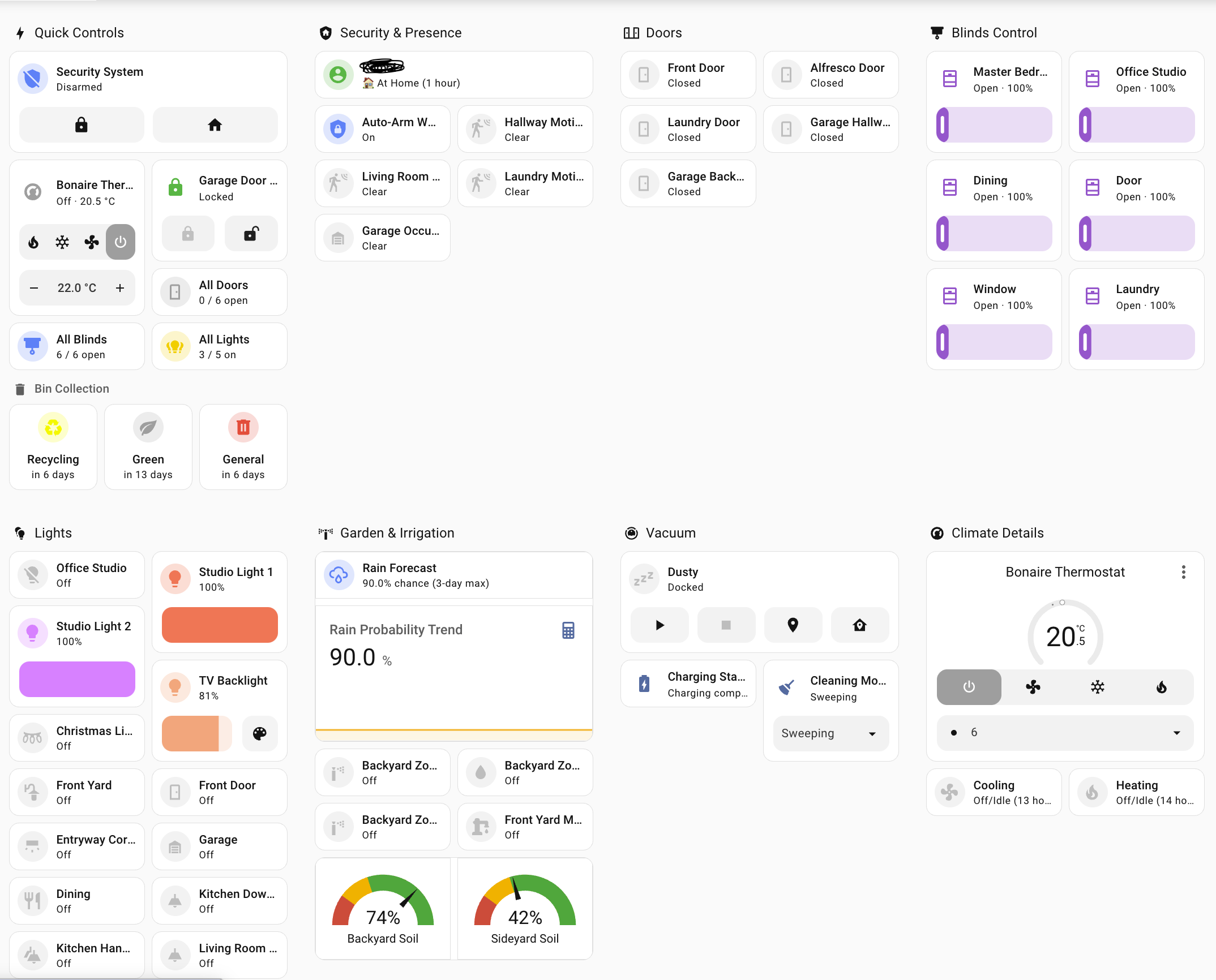
Example tablet-optimized dashboard built using this skill - touch-friendly controls, color-coded status, and responsive grid layout
Verify Claude can see and use this skill:
https://github.com/user-attachments/assets/a215df83-ce84-4ed2-bb93-f3a3ee0c43e8
Shows Claude recognizing the skill and loading Home Assistant expertise
Watch the complete workflow in action - end to end (3x speed):
https://github.com/user-attachments/assets/eab53b18-ae2b-4d43-b1e4-e45bf9357099
Complete automation development cycle including deployment, testing, log analysis, and git workflow
This Claude Code skill transforms Claude into a Home Assistant expert that helps you:
scp for instant testing, commit to git when stablehass-cli/config directoryhass-cli installed (pipx install homeassistant-cli)HASS_SERVER, HASS_TOKENcd /path/to/your/homeassistant/config
mkdir -p .claude/skills
cd .claude/skills
git clone [email protected]:komal-SkyNET/claude-skill-homeassistant.git home-assistant-manager
cd /path/to/your/homeassistant/config
mkdir -p .claude/skills/home-assistant-manager
cd .claude/skills/home-assistant-manager
curl -L https://github.com/komal-SkyNET/claude-skill-homeassistant/archive/main.tar.gz | tar xz --strip-components=1
The skill should appear when you start Claude Code in your Home Assistant repository. Claude will automatically load the skill and apply the expertise.
User: "Create an automation that sends a notification when the front door
       is left open for more than 5 minutes"

Claude: [Uses skill to]:
1. Create automation YAML with proper syntax
2. Deploy via scp for testing
3. Reload automations (no restart needed)
4. Manually trigger to test
5. Check logs for execution
6. Verify notification received
7. Commit to git when working
User: "Create a dashboard for my 11-inch tablet in the living room
       with lights, thermostat, and door status"

Claude: [Uses skill to]:
1. Create new dashboard file in .storage/
2. Register in lovelace_dashboards
3. Use 3-column grid layout (optimal for 11")
4. Add Mushroom cards for touch-friendly controls
5. Create template card with door counting
6. Deploy via scp for instant preview
7. Iterate on layout based on feedback
8. Commit when finalized
User: "My automation has a TypeError about comparing str and int"

Claude: [Uses skill to]:
1. Check logs for exact error message
2. Identify template needs | int filter
3. Fix the template syntax
4. Deploy via scp
5. Trigger manually to verify
6. Check logs confirm no errors
7. Commit the fix
This skill provides expertise in three core areas:
hass-cli commands with environment variablesha CLI commandsWe welcome contributions from the Home Assistant community! This skill has been developed through real-world usage and we want to keep improving it.
🎯 Focus on Home Assistant-specific expertise:
✅ GOOD contributions:
- New template patterns for common use cases
- Solutions to specific HA configuration pitfalls
- Dashboard card examples for different devices
- Integration-specific deployment workflows
- Automation verification patterns
- Log analysis patterns for specific errors
❌ AVOID generic contributions:
- General git workflows (unless HA-specific)
- Generic Python/YAML best practices
- Non-HA development workflows
Add to the "Common Template Patterns" section:
**Your Pattern Name:**
```jinja2
{% set entities = [...] %}
{{ your_template_logic }}
Use case: Explain when to use this
Example output: Show what it produces
#### 2. Dashboard Card Examples

Add to "Real-World Examples":

```markdown
### Your Card Name
```json
{
  "type": "...",
  ...
}
Best for: Device type, use case
Features: What makes this example useful
#### 3. Pitfall Solutions

Add to "Common Pitfalls":

```markdown
**Problem X: Brief description**
- **Symptom:** What the user sees
- **Cause:** Root cause explanation
- **Fix:** Step-by-step solution
If proposing workflow changes:
- Explain the problem with current workflow
- Provide specific HA scenario where it applies
- Show before/after comparison
- Include verification steps
git checkout -b feature/your-contribution-nameSKILL.mdPRs are reviewed for:
- ✅ HA-specific value: Does it solve a real HA problem?
- ✅ Accuracy: Is the information correct and up-to-date?
- ✅ Clarity: Is it well-documented and easy to understand?
- ✅ Tested: Has it been verified in a real HA environment?
home-assistant-manager/
├── SKILL.md          # Main skill content with YAML frontmatter
├── README.md         # This file
└── LICENSE           # MIT License
The skill follows the official Claude skills specification:
- SKILL.md contains YAML frontmatter with name and description
- Content organized in logical sections
- Includes examples, patterns, and workflows
- Focused on actionable expertise
For the skill to work optimally, ensure your environment has:
# Test SSH access
ssh [email protected] "ha core info"
# Install hass-cli
pipx install homeassistant-cli

# Set environment variables (add to ~/.bashrc or ~/.zshrc)
export HASS_SERVER=http://homeassistant.local:8123
export HASS_TOKEN=your_long_lived_access_token

# Test hass-cli
hass-cli state list
# Your HA config should be a git repository
cd /config
git init
git remote add origin your-repo-url

# Claude should be run from this directory
# Add Context7 for official HA documentation
claude mcp add --transport http context7 https://mcp.context7.com/mcp \
  --header "CONTEXT7_API_KEY: your_api_key"
MIT License - See LICENSE file for details.
Komal Venkatesh Ganesan
If you find this skill helpful for managing your Home Assistant setup, consider supporting its development:

claude-skillMade with ❤️ for the Home Assistant community
Refactor high-complexity React components in Dify frontend. Use when `pnpm analyze-component...
Trigger when the user requests a review of frontend files (e.g., `.tsx`, `.ts`, `.js`). Support...
Generate Vitest + React Testing Library tests for Dify frontend components, hooks, and...
Guide for implementing oRPC contract-first API patterns in Dify frontend. Triggers when creating...
This skill is compatible with the SKILL.md standard and works with all major AI coding agents:
Learn more about the SKILL.md standard and how to use these skills with your preferred AI coding agent.